How to Enable VPN in Edge: Turn On Microsoft Edge Secure Network
Learn how to enable Microsoft Edge Secure Network, check whether it is available, and understand what protection it provides.
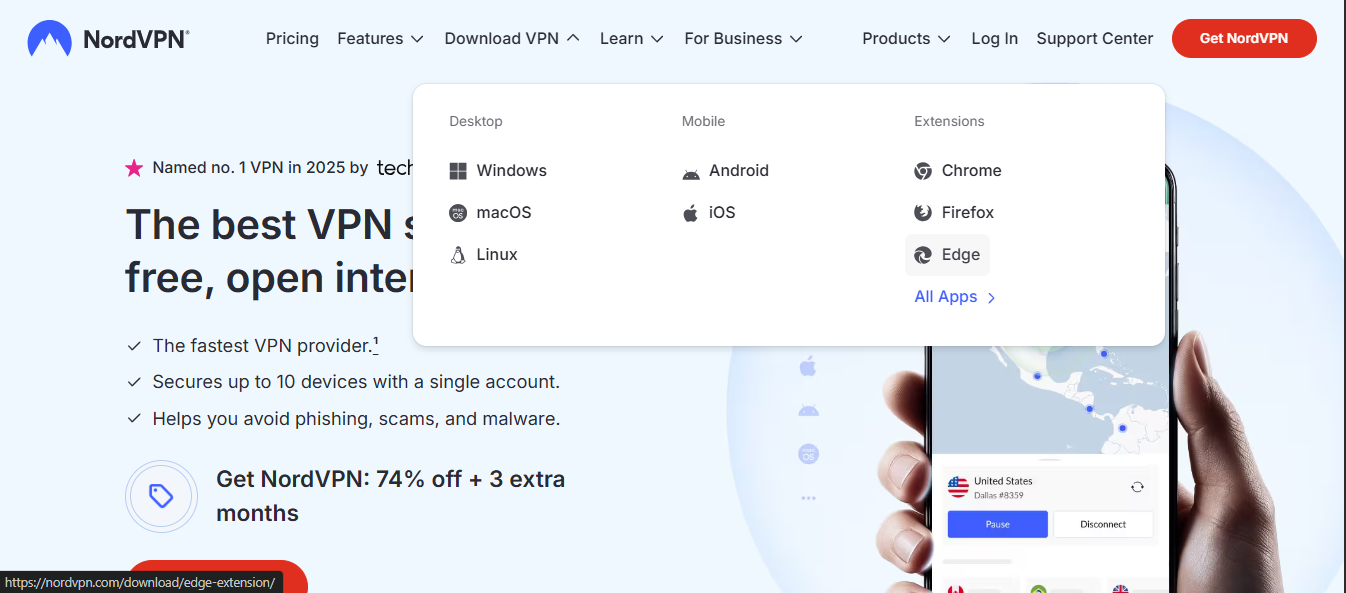
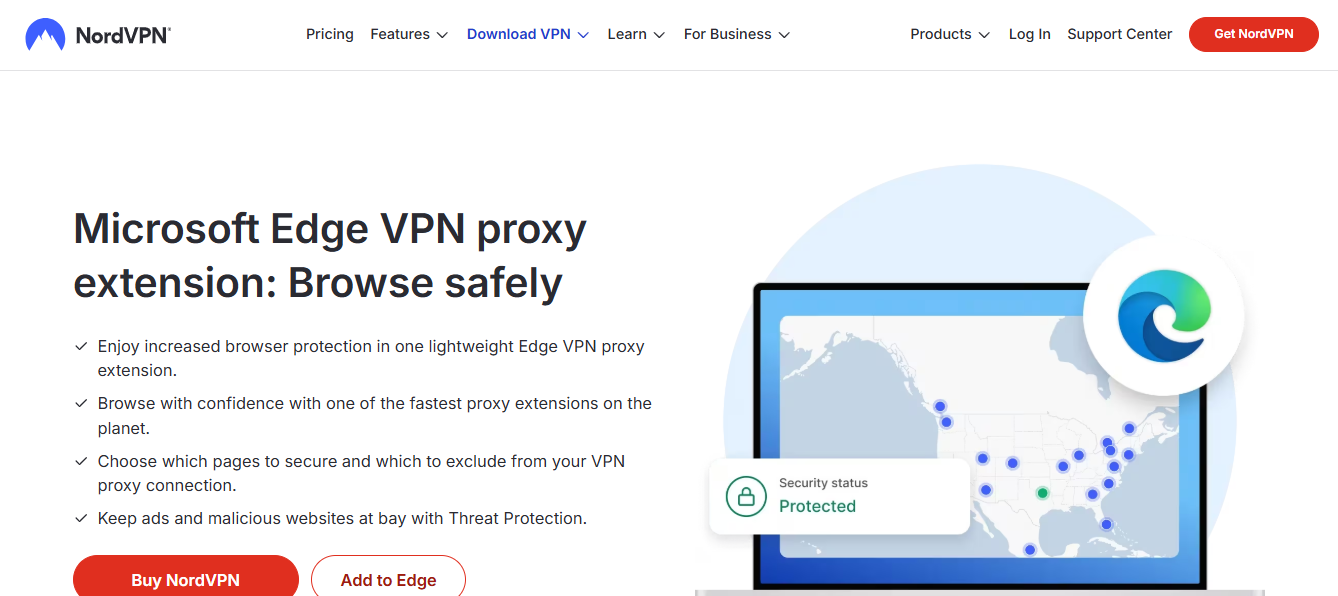
To enable VPN in Edge, open Settings and more (the three-dot menu), select Settings, then go to Privacy, search, and services. Find Microsoft Edge Secure Network and switch it on. If the setting is missing, check that Edge is up to date and that you are signed in with a personal Microsoft account. The feature may not be available for every account, device, or region.
Microsoft calls this feature Secure Network. It uses VPN technology to help protect traffic while you browse, particularly on open Wi-Fi. It is a browser feature, so its protection is not the same as installing a VPN that covers all internet activity on your device.
| VPN | Obfuscation | From / month | Plan | Free plan | Refund | Alipay | UnionPay | Crypto | Website opens in China | Trustpilot | |
|---|---|---|---|---|---|---|---|---|---|---|---|
 ZoogVPN | Turn on manually Shadow | $2.49/mo | 27 months: $59.99 | Yes | 7 days | ✓ | ✓ | ✓ | ✓ | Official site blocked; our special link opens (4.4 s) | 4.2/5 (195 reviews) |
 NordVPN | Turn on manually Obfuscated Servers / NordWhisper | $3.49/mo | 27 months: $94.23 | No | 30 days | ? | ✗ | ✓ | ✓ | ✗ Blocked | 4.2/5 (51,628 reviews) |
 ExpressVPN | ✓ On by default all servers | $3.00/mo | 28 months: $84 | No | 30 days | ✗ | ✗ | ✓ | ✗ | ✗ Blocked | 4.4/5 (29,706 reviews) |
 Surfshark | ✓ On by default Camouflage, with OpenVPN | See site | See site | No | 30 days | ✗ | ✗ | ✗ | ✓ | ✗ Blocked | 4.3/5 (31,823 reviews) |
 Proton VPN | Turn on manually Stealth, free plan too | $2.99/mo | 12 months: $35.88 | Yes | 30 days | ✗ | ✗ | ✗ | ✓ | ✗ Blocked | 2.1/5 (1,040 reviews) |
 Astrill VPN | Turn on manually StealthVPN / OpenWeb | $12.50/mo | 24 months: $300 | No | See site | ✗ | ✗ | ✗ | ✓ | ✗ Blocked | 1.3/5 (110 reviews) |
 Private Internet Access | Turn on manually Shadowsocks, OpenVPN only | $2.03/mo | 40 months: $81.2 | No | 30 days | ✗ | ✗ | ✗ | ✗ | ✗ Blocked | 4.2/5 (11,033 reviews) |
 CyberGhost | Turn on manually selected servers | $2.19/mo | 28 months: $61.32 | No | 45 days | ✗ | ✗ | ✗ | ✓ | ✗ Blocked | 4.0/5 (24,178 reviews) |
 PureVPN | Turn on manually switch to OpenVPN | $1.69/mo | 60 months: $101.55 | No | 31 days | ? | ? | ✗ | ✓ | ✗ Blocked | 4.4/5 (17,994 reviews) |
 AdGuard VPN | ✓ On by default TrustTunnel | $2.99/mo | 24 months: $71.76 | Yes | 30 days | ✓ | ✗ | ✓ | ✓ | Official site blocked; our special link opens (3.7 s) | 4.3/5 (290 reviews) |
 Mullvad | Turn on manually QUIC / Shadowsocks / LWO | $5.61/mo | €5/mo | No | 14 days | ✗ | ✗ | ✗ | ✓ | ✗ Blocked | 3.2/5 (192 reviews) |
 Windscribe | Turn on manually Stealth / WStunnel | $5.75/mo | 12 months: $69 | Yes | See site | ✗ | ✗ | ✗ | ✓ | ✗ Blocked | 4.7/5 (13,355 reviews) |
 StrongVPN | Turn on manually Scramble, OpenVPN TCP | See site | See site | No | 30 days | ✓ | ✗ | ✗ | ✗ | ✗ Blocked | 4.4/5 (2,695 reviews) |
 LightXtreme 闪连 | Not listed | $7.08/mo | 12 months: $84.99 | Yes | 30 days | ✓ | ✓ | ✓ | ✓ | ✓ Yes (3.5 s) | No page |
Prices checked 2026-11-10 on each vendor's pricing page (cheapest long plan, USD). Check the vendor's checkout for the final price.
Obfuscation checked 2026-11-14 on each vendor's site and help center: "on by default" = nothing to set; "turn on manually" = switch protocol or mode in settings; "not listed" = the vendor describes no obfuscation.
Payment methods checked 2026-11-10 on each vendor's payment pages: all 14 take cards and PayPal; ✗ = not listed, ? = the vendor's own pages disagree.
China access: whether the official website opens from mainland China networks (tests the website only, not the VPN connection). Last checked 2026-11-18 01:02 Beijing time.
Trustpilot score and review count checked 2026-11-10.
Editor's pick: NordVPN — fast, secure VPN — Strong encryption, a no-logs policy and apps for every device. 30-day money-back guarantee. Get NordVPN →
Compare Edge Secure Network with other ways to protect your connection
| Option | Where it works | Encrypts connection | Changes apparent location | Best for |
|---|---|---|---|---|
| Edge Secure Network | Microsoft Edge | Yes | Not a full location-changing VPN | Extra protection while browsing |
| Commercial VPN app | Across supported apps | Yes | Usually | Broader privacy and location choices |
| HTTPS website | That website | Yes, to the site | No | Protecting data sent to secure sites |
| Public Wi-Fi without protection | Connected apps and sites | No added VPN protection | No | No sensitive activity |
| Private home network | Connected devices | No VPN by itself | No | Everyday trusted connections |
| Browser private window | Browser session | No VPN by itself | No | Limiting local browsing history |
Compiled November 2026; check the provider's site for current details.
How to turn on VPN in Microsoft Edge
Use these steps in the desktop version of Edge:
- Open Microsoft Edge.
- Select the three-dot button in the upper-right corner, or press Alt+F.
- Choose Settings.
- Select Privacy, search, and services.
- Look for Microsoft Edge Secure Network or a Security section containing the Secure Network controls.
- Turn on Microsoft Edge Secure Network and follow any prompts to sign in.
The setting may offer options for when Secure Network is used. Read the choices shown in your version of Edge and select the one that suits your browsing. If you do not see an activation prompt or usage controls, your version or account may present the feature differently.
You can also open Edge settings and search for “Secure Network” to locate the relevant control more quickly.
What to do if Secure Network is missing
If you cannot find the Secure Network option, the feature may not be enabled for your setup. Try these checks: VPN Extension for Edge: How to Choose and Use One
- Sign in to Edge: Secure Network may require a personal Microsoft account. A work or school account may not meet the requirement.
- Update Edge: Open Settings and more > Help and feedback > About Microsoft Edge and let the browser check for updates.
- Restart the browser: Close and reopen Edge after updating or signing in.
- Check the settings path: Look under Privacy, search, and services, including any Security subsection.
- Consider device management: An organization may control browser features through its policies.
- Check availability: Secure Network may not be offered to every user, account, region, or Edge installation.
If the option remains unavailable, you cannot enable Secure Network through a hidden switch. You can use a reputable VPN application or service instead, if you need VPN protection and it is suitable for your situation.
What Edge Secure Network does, and does not do
Secure Network uses VPN technology to help protect browser traffic. This can be useful when browsing on public or open Wi-Fi because it adds a layer of privacy between your browser traffic and the local network. It does not make you completely anonymous, and it does not guarantee that every website or online activity is private.
The distinction between Edge’s built-in feature and a full-device VPN is important:
| Option | What it generally protects | Best suited for |
|---|---|---|
| Edge Secure Network | Traffic handled by Microsoft Edge while the feature is active | Added browser protection, including when using open Wi-Fi |
| Full-device VPN app | Internet traffic from supported apps across the device, depending on its settings | Protection beyond the browser, such as in other applications |
A VPN does not replace safe browsing habits. Websites can still identify you through account sign-ins, cookies, or other information you choose to share. Keep Edge updated, use trusted websites, and avoid entering sensitive information on pages you do not trust. OVPN File: What It Is, How to Open It, and How to Use It
What to try when Secure Network is missing or unavailable
| Check | What to do | What to look for | If it still is not available |
|---|---|---|---|
| Edge version | Update Microsoft Edge | Latest available version | Restart Edge and check again |
| Microsoft account | Sign in to Edge | Signed-in account | Sign in, then reopen settings |
| Feature availability | Check Edge settings | Secure Network option | Availability may vary |
| Settings location | Open Edge settings | Privacy, search, and services | Search settings for “Secure Network” |
| Browser restart | Close and reopen Edge | Option appears after restart | Install updates first |
| Managed device | Check with your organization | Admin restrictions | Ask your administrator |
Compiled November 2026; check the provider's site for current details.
Is Microsoft Edge Secure Network free?
Microsoft describes Secure Network as a built-in privacy feature, but access and usage conditions can depend on the current Edge offering and your account. Check the information displayed in Edge when you open its Secure Network settings rather than assuming a particular allowance or availability.
If you are comparing it with a separate VPN service, consider what you need protected, which devices and apps must be covered, and the provider’s privacy terms. Do not choose a service solely because it is labeled “free”. Review how it handles your data and whether it meets your needs. .Ovpn File: What It Is and How to Open It
How to check that Secure Network is on
After enabling the feature, return to Settings > Privacy, search, and services and confirm the Secure Network control is switched on. Edge may also show an indicator or status control for Secure Network in the browser, depending on the version and configuration.
If you turn it on but do not see a change, check the feature’s status and any options shown in its settings. Some configurations may activate protection only under specified conditions. Follow the prompts in Edge, and avoid relying on the feature until its status indicates it is active.
Choose the right way to verify and use Secure Network
| Need | Recommended check or choice | What it confirms | Limitation |
|---|---|---|---|
| Turn it on | Enable Secure Network in Edge settings | Feature is enabled | Does not prove every site uses it |
| Check status | Look for the Secure Network indicator | Edge reports it is on | Indicator can change by browsing context |
| Protect browsing on public Wi-Fi | Use Secure Network in Edge | Edge traffic receives added protection | Does not cover other apps |
| Use a different country’s connection | Choose a commercial VPN | VPN may offer location selection | Not Secure Network’s main purpose |
| Protect traffic outside Edge | Use a device-level VPN | Supported device traffic is covered | Depends on provider and setup |
| Confirm subscription terms | Review Microsoft’s current feature details | Current access and limits | Terms can change |
Compiled November 2026; check the provider's site for current details. Best VPN Extension for Edge: What to Choose and How to Decide
Recommendation
For basic protection of Edge browsing on open Wi-Fi, enable Microsoft Edge Secure Network if it appears in your settings and suits your needs. If you need VPN coverage for apps outside Edge, use a trusted full-device VPN instead.