Windows VPN: How to Choose, Set Up, and Use One
Learn what Windows VPN settings do, how to connect to a VPN, and what to consider when choosing a provider.
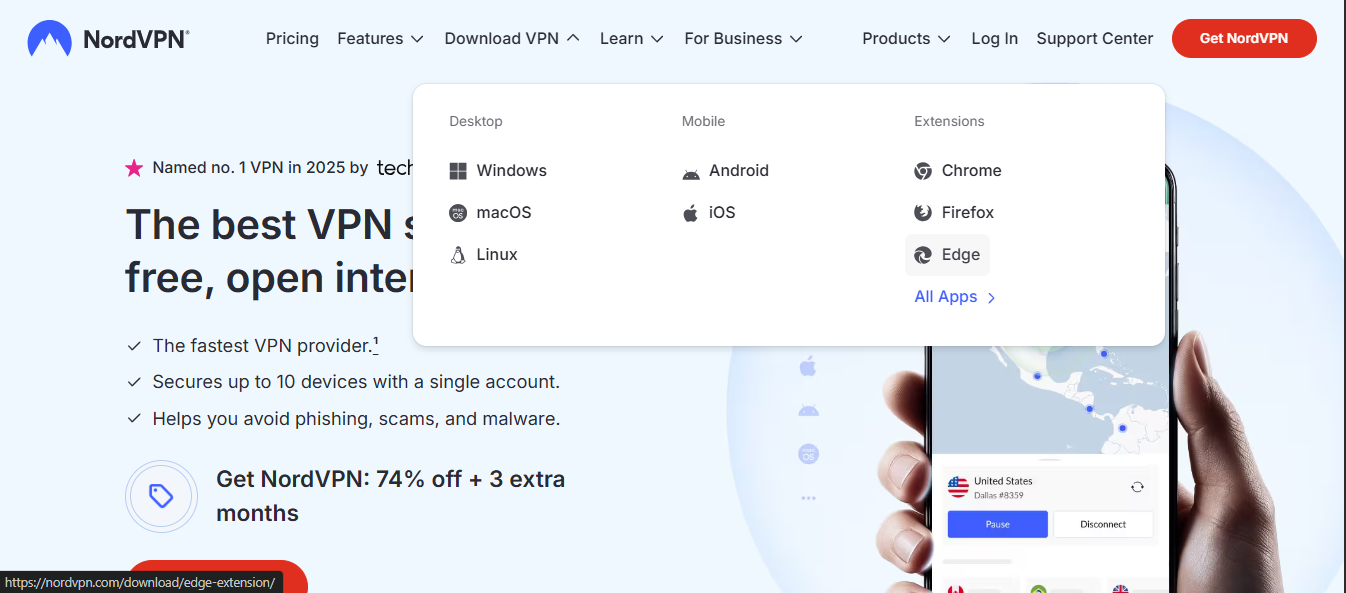
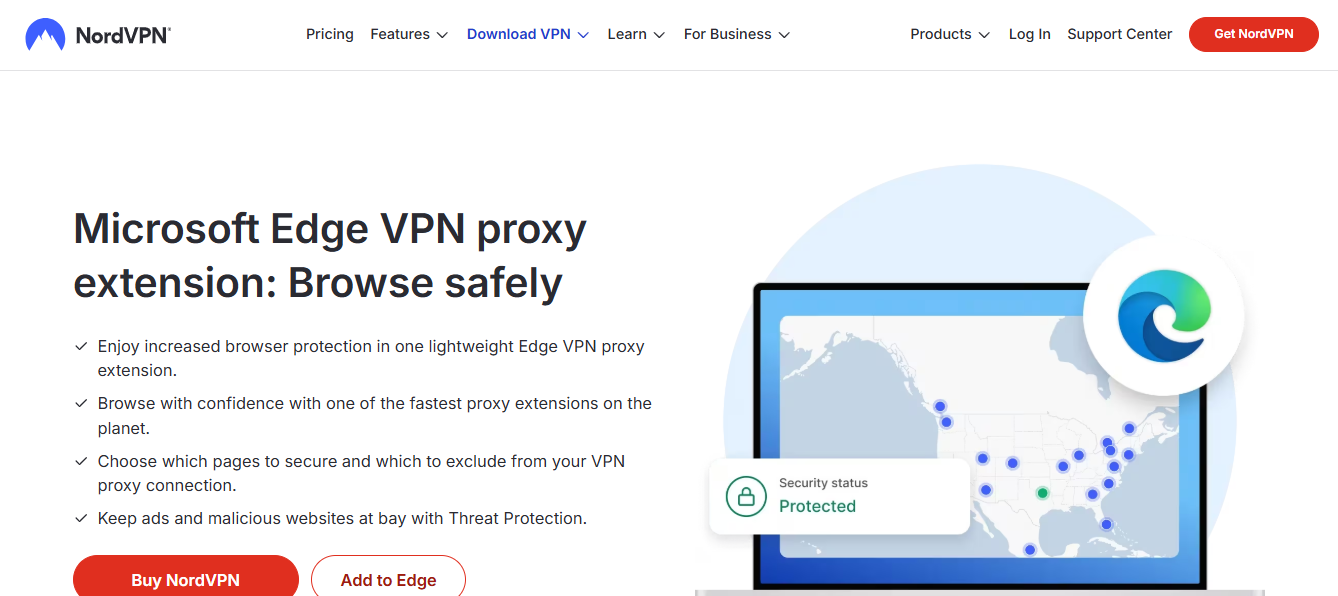
A Windows VPN can help protect your internet traffic, connect you to a workplace network, or access a VPN provider’s server. Windows includes settings for adding and managing VPN connections, but those settings are not themselves a subscription VPN service. To get connected, you typically need configuration details from your employer or a VPN provider, or you can use that provider’s Windows app.
Editor's pick: NordVPN — fast, secure VPN — Strong encryption, a no-logs policy and apps for every device. 30-day money-back guarantee. Get NordVPN →
Compare the main ways to connect to a VPN on Windows
| Option | What it uses | Setup location | VPN service needed | Best for |
|---|---|---|---|---|
| Windows built-in VPN client | A VPN protocol and server details | Windows Settings | Yes | Connecting to a workplace or provider |
| VPN provider’s Windows app | Provider’s app and network | Provider’s app | Usually included | Simple setup and extra features |
| Workplace VPN | Employer’s VPN configuration | Windows or workplace app | Provided by employer | Accessing work resources |
| Manual VPN connection | Provider’s server and sign-in details | Windows Settings | Yes | Users with supplied configuration |
| VPN browser extension | Browser extension | Web browser | Usually included | Protecting browser traffic only |
| Router VPN | VPN configured on a router | Router settings | Yes | Connecting multiple devices |
| No VPN | Direct internet connection | No setup | No | Browsing without a VPN |
Compiled November 2026; check the provider's site for current details.
| VPN | Obfuscation | From / month | Plan | Free plan | Refund | Alipay | UnionPay | Crypto | Website opens in China | Trustpilot | |
|---|---|---|---|---|---|---|---|---|---|---|---|
 Proton VPN | Turn on manually Stealth, free plan too | $2.99/mo | 12 months: $35.88 | Yes | 30 days | ✗ | ✗ | ✗ | ✓ | ✗ Blocked | 2.1/5 (1,040 reviews) |
 ZoogVPN | Turn on manually Shadow | $2.49/mo | 27 months: $59.99 | Yes | 7 days | ✓ | ✓ | ✓ | ✓ | Official site blocked; our special link opens (4.4 s) | 4.2/5 (195 reviews) |
 NordVPN | Turn on manually Obfuscated Servers / NordWhisper | $3.49/mo | 27 months: $94.23 | No | 30 days | ? | ✗ | ✓ | ✓ | ✗ Blocked | 4.2/5 (51,628 reviews) |
 ExpressVPN | ✓ On by default all servers | $3.00/mo | 28 months: $84 | No | 30 days | ✗ | ✗ | ✓ | ✗ | ✗ Blocked | 4.4/5 (29,706 reviews) |
 Surfshark | ✓ On by default Camouflage, with OpenVPN | See site | See site | No | 30 days | ✗ | ✗ | ✗ | ✓ | ✗ Blocked | 4.3/5 (31,823 reviews) |
 Astrill VPN | Turn on manually StealthVPN / OpenWeb | $12.50/mo | 24 months: $300 | No | See site | ✗ | ✗ | ✗ | ✓ | ✗ Blocked | 1.3/5 (110 reviews) |
 Private Internet Access | Turn on manually Shadowsocks, OpenVPN only | $2.03/mo | 40 months: $81.2 | No | 30 days | ✗ | ✗ | ✗ | ✗ | ✗ Blocked | 4.2/5 (11,033 reviews) |
 CyberGhost | Turn on manually selected servers | $2.19/mo | 28 months: $61.32 | No | 45 days | ✗ | ✗ | ✗ | ✓ | ✗ Blocked | 4.0/5 (24,178 reviews) |
 PureVPN | Turn on manually switch to OpenVPN | $1.69/mo | 60 months: $101.55 | No | 31 days | ? | ? | ✗ | ✓ | ✗ Blocked | 4.4/5 (17,994 reviews) |
 AdGuard VPN | ✓ On by default TrustTunnel | $2.99/mo | 24 months: $71.76 | Yes | 30 days | ✓ | ✗ | ✓ | ✓ | Official site blocked; our special link opens (3.7 s) | 4.3/5 (290 reviews) |
 Mullvad | Turn on manually QUIC / Shadowsocks / LWO | $5.61/mo | €5/mo | No | 14 days | ✗ | ✗ | ✗ | ✓ | ✗ Blocked | 3.2/5 (192 reviews) |
 Windscribe | Turn on manually Stealth / WStunnel | $5.75/mo | 12 months: $69 | Yes | See site | ✗ | ✗ | ✗ | ✓ | ✗ Blocked | 4.7/5 (13,355 reviews) |
 StrongVPN | Turn on manually Scramble, OpenVPN TCP | See site | See site | No | 30 days | ✓ | ✗ | ✗ | ✗ | ✗ Blocked | 4.4/5 (2,695 reviews) |
 LightXtreme 闪连 | Not listed | $7.08/mo | 12 months: $84.99 | Yes | 30 days | ✓ | ✓ | ✓ | ✓ | ✓ Yes (3.5 s) | No page |
Prices checked 2026-11-10 on each vendor's pricing page (cheapest long plan, USD). Check the vendor's checkout for the final price.
Obfuscation checked 2026-11-14 on each vendor's site and help center: "on by default" = nothing to set; "turn on manually" = switch protocol or mode in settings; "not listed" = the vendor describes no obfuscation.
Payment methods checked 2026-11-10 on each vendor's payment pages: all 14 take cards and PayPal; ✗ = not listed, ? = the vendor's own pages disagree.
China access: whether the official website opens from mainland China networks (tests the website only, not the VPN connection). Last checked 2026-11-18 01:02 Beijing time.
Trustpilot score and review count checked 2026-11-10.
Does Windows have a built-in VPN?
Windows has built-in VPN connection settings. In the Settings app, go to Network & internet > VPN to add or manage a connection. These settings let Windows connect using details and protocols supplied by a VPN provider, employer, or other network administrator.
That is different from Windows providing a consumer VPN service. If you want to route your traffic through a commercial VPN, you generally need to choose a provider and use its app or enter its connection information yourself. A Windows VPN menu alone will not create a VPN account or select a server for you.
A VPN can encrypt traffic between your device and the VPN server, depending on the connection and configuration. It can also change the IP address websites see to the address of that server. It does not guarantee anonymity: websites may still identify you through accounts, cookies, or other information, and your VPN provider may have access to connection data.
Choose how to connect
There are two common ways to use a VPN on a Windows PC: install the VPN provider’s app, or add a connection manually through Windows. Free VPN for Microsoft Edge: What to Know Before You Choose
| Method | What you need | Best suited for |
|---|---|---|
| Provider’s Windows app | An account or access to the provider’s service | People who want an app to select servers and manage the connection |
| Windows VPN settings | Server address, connection type, and sign-in details from a provider or administrator | Workplace connections or users with supplied configuration details |
A provider app is often the simpler option for personal use. For example, Proton VPN offers a Windows app, while other providers also publish Windows downloads. Download software from the provider’s official website, check the plan and account requirements, and review the provider’s privacy and security information before signing up.
Manual setup can be useful when an organization gives you the information needed to connect. The exact fields and available options depend on the VPN service and Windows version. If your employer manages the device, follow its instructions rather than entering settings from an unrelated provider.
Compare Windows VPN setup approaches
| Approach | Where to start | Details or software needed | Covers all device traffic | Main consideration |
|---|---|---|---|---|
| Windows built-in client | Settings | Server address and sign-in details | Supported, depending on configuration | Provider must support a compatible protocol |
| Provider’s Windows app | Provider website or app store | App and account | Usually supported | Check app features and trustworthiness |
| Workplace setup | Employer instructions | Work account and configuration | Depends on setup | Follow your organization’s instructions |
| Manual configuration | Settings | Protocol, server, and credentials | Supported, depending on configuration | More details may need to be entered |
| Browser extension | Browser’s extension store | Extension and account | No | Usually applies only to browser traffic |
| Router configuration | Router administration page | Router-compatible VPN details | Supported for connected devices | Setup depends on the router |
| Skip VPN setup | No setup | None | No | Internet traffic is not routed through a VPN |
Compiled November 2026; check the provider's site for current details. Edge Secure Network VPN Review: Is Microsoft Edge’s Built-In VPN Worth Using?
Add a VPN connection in Windows
To configure a connection manually, open Settings and select Network & internet > VPN > Add VPN. The labels may vary slightly between Windows versions.
You will generally need to fill in details provided by your VPN service or administrator, such as:
- VPN provider: Select the Windows option when configuring a connection through the built-in settings.
- Connection name: Enter a label you will recognize.
- Server name or address: Use the address supplied by the provider or administrator.
- VPN type: Choose the type specified in the setup instructions.
- Sign-in information: Enter the required username, password, certificate, or other credentials.
Save the connection, return to the VPN page, select it, and choose Connect. Do not guess the server address, connection type, or credentials. Incorrect settings can prevent the connection from working, and the required information must come from the organization or service you intend to use.
To disconnect, return to the VPN page and choose Disconnect for the active connection. If you use a provider app instead, connect and disconnect within that app unless its instructions say otherwise. FortiClient VPN Windows 11: Install, Set Up, and Fix Connection Problems
What to consider when choosing a Windows VPN
Before installing a VPN, consider what you need it to do. A workplace VPN is configured for access to company resources. A personal VPN is generally used to route everyday internet traffic through a provider’s servers. One is not automatically a substitute for the other.
When comparing services, look beyond whether the app is free or easy to install. Review:
- Privacy policy: Understand what information the provider collects and how it handles it.
- Security features: Check which connection options and protective features are supported on Windows.
- Ease of use: Consider whether the app makes it clear when you are connected and which server you are using.
- Plan limits and terms: Confirm what is included and whether registration or a paid plan is required.
- Support: Check whether setup guidance is available for your Windows version and intended use.
Free VPN offers vary. Do not assume that “free” means unlimited, private, or suitable for every purpose. Read the provider’s current terms and privacy information before installing an app or entering personal details.
What to check when choosing a Windows VPN VPN for Edge: How to Choose the Right Option
| Consideration | What to look for | Why it matters | Check before choosing |
|---|---|---|---|
| Windows support | A compatible Windows app or protocol | Enables connection on your device | Confirm Windows version compatibility |
| Setup method | App, built-in client, or both | Determines setup effort | Check available instructions |
| Privacy policy | Clear data-collection practices | Shows how provider handles information | Read the policy |
| Security | Supported protocols and protective features | Helps assess connection protection | Review technical details |
| Server locations | Locations that suit your needs | Affects available connection regions | Check the provider’s network |
| Performance | Reliable speeds for your activities | Matters for browsing and streaming | Look for relevant testing |
| Customer support | Accessible help and setup guidance | Useful when connections fail | Check support channels |
| Price and terms | Clear cost, renewal, and cancellation details | Helps avoid unexpected charges | Review the full terms |
Compiled November 2026; check the provider's site for current details.
Common questions about Windows VPN
Is a VPN free for Windows?
Windows provides VPN connection settings, but that does not mean it provides a free commercial VPN service. Some providers offer free plans, while others require a subscription. Features and terms differ, so check the provider’s current information before downloading.
Can a VPN make me completely anonymous?
No. A VPN can change the route your traffic takes and the IP address visible to many websites, but it cannot prevent every form of tracking. Signed-in accounts, browser data, and information you share can still identify you.
Can authorities see through a VPN?
A VPN is not a guarantee that activity is invisible to authorities or anyone else. What can be observed depends on factors such as the service, its records, the device, and the circumstances. A VPN should be treated as one privacy measure, not a promise of total secrecy. EqualVPN Review: What It Offers and Who It May Suit
Why won’t my Windows VPN connect?
Check that your device has an internet connection and that the server address, VPN type, and sign-in details match the instructions you received. If you use a provider app, update it and consult the provider’s troubleshooting guidance. For a work connection, contact your organization’s IT support.
Recommendation
For a personal Windows VPN, start by comparing reputable providers and use the official Windows app if you want a straightforward setup. For work or school, use the connection details and instructions supplied by the organization. In either case, confirm what the VPN does, and does not, protect before relying on it.