How Can I Tell If a VPN Is Blocking My Internet?
Learn how to identify a VPN connection problem, distinguish it from a Wi-Fi outage, and safely restore access.
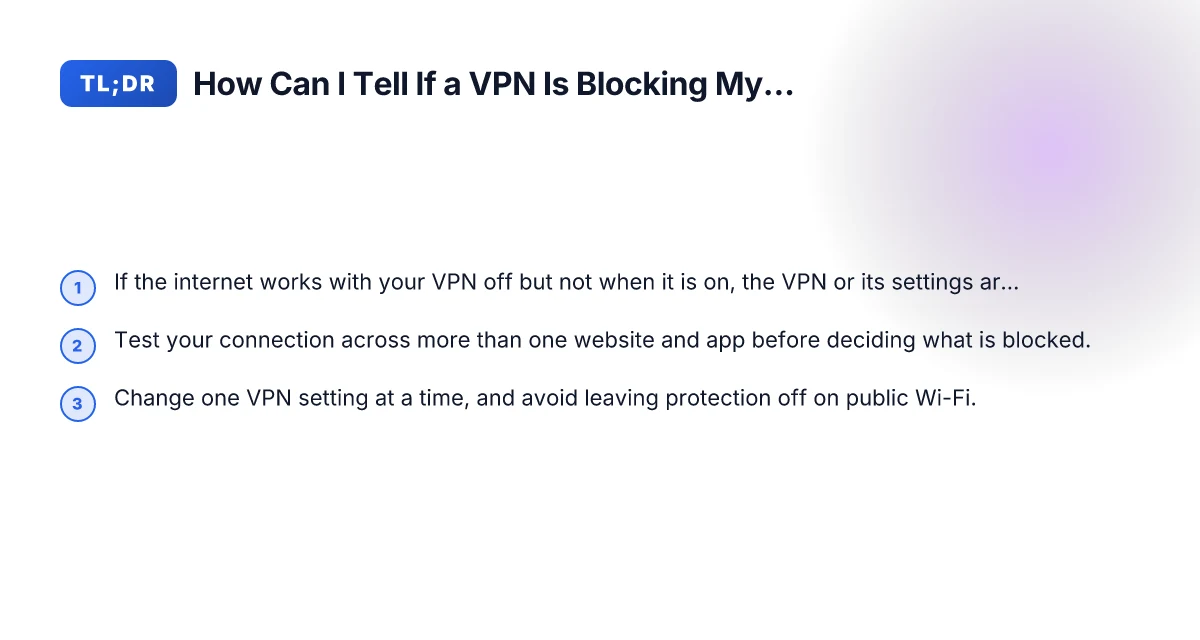
If you’re asking, “How can I tell if a VPN is blocking my internet?”, compare your connection with the VPN on and off. If websites and apps fail while the VPN is connected but work as soon as you disconnect, the VPN connection, its kill switch, or a related setting is probably interfering. If the internet fails in both states, the issue is more likely with your Wi-Fi, device, router, or internet provider.
Start with a quick comparison
On a trusted network, disconnect from the VPN and try a few familiar websites or apps. Then reconnect to the VPN and test them again. Use more than one service: a single website may be down or may block VPN traffic, which doesn’t mean the VPN has cut off your entire internet connection.
| VPN | Obfuscation | From / month | Plan | Free plan | Refund | Alipay | UnionPay | Crypto | Website opens in China | Trustpilot | |
|---|---|---|---|---|---|---|---|---|---|---|---|
 ZoogVPN | Turn on manually Shadow | $2.49/mo | 27 months: $59.99 | Yes | 7 days | ✓ | ✓ | ✓ | ✓ | Official site blocked; our special link opens (4.4 s) | 4.2/5 (195 reviews) |
 NordVPN | Turn on manually Obfuscated Servers / NordWhisper | $3.49/mo | 27 months: $94.23 | No | 30 days | ? | ✗ | ✓ | ✓ | ✗ Blocked | 4.2/5 (51,628 reviews) |
 ExpressVPN | ✓ On by default all servers | $3.00/mo | 28 months: $84 | No | 30 days | ✗ | ✗ | ✓ | ✗ | ✗ Blocked | 4.4/5 (29,706 reviews) |
 Surfshark | ✓ On by default Camouflage, with OpenVPN | See site | See site | No | 30 days | ✗ | ✗ | ✗ | ✓ | ✗ Blocked | 4.3/5 (31,823 reviews) |
 Proton VPN | Turn on manually Stealth, free plan too | $2.99/mo | 12 months: $35.88 | Yes | 30 days | ✗ | ✗ | ✗ | ✓ | ✗ Blocked | 2.1/5 (1,040 reviews) |
 Astrill VPN | Turn on manually StealthVPN / OpenWeb | $12.50/mo | 24 months: $300 | No | See site | ✗ | ✗ | ✗ | ✓ | ✗ Blocked | 1.3/5 (110 reviews) |
 Private Internet Access | Turn on manually Shadowsocks, OpenVPN only | $2.03/mo | 40 months: $81.2 | No | 30 days | ✗ | ✗ | ✗ | ✗ | ✗ Blocked | 4.2/5 (11,033 reviews) |
 CyberGhost | Turn on manually selected servers | $2.19/mo | 28 months: $61.32 | No | 45 days | ✗ | ✗ | ✗ | ✓ | ✗ Blocked | 4.0/5 (24,178 reviews) |
 PureVPN | Turn on manually switch to OpenVPN | $1.69/mo | 60 months: $101.55 | No | 31 days | ? | ? | ✗ | ✓ | ✗ Blocked | 4.4/5 (17,994 reviews) |
 AdGuard VPN | ✓ On by default TrustTunnel | $2.99/mo | 24 months: $71.76 | Yes | 30 days | ✓ | ✗ | ✓ | ✓ | Official site blocked; our special link opens (3.7 s) | 4.3/5 (290 reviews) |
 Mullvad | Turn on manually QUIC / Shadowsocks / LWO | $5.61/mo | €5/mo | No | 14 days | ✗ | ✗ | ✗ | ✓ | ✗ Blocked | 3.2/5 (192 reviews) |
 Windscribe | Turn on manually Stealth / WStunnel | $5.75/mo | 12 months: $69 | Yes | See site | ✗ | ✗ | ✗ | ✓ | ✗ Blocked | 4.7/5 (13,355 reviews) |
 StrongVPN | Turn on manually Scramble, OpenVPN TCP | See site | See site | No | 30 days | ✓ | ✗ | ✗ | ✗ | ✗ Blocked | 4.4/5 (2,695 reviews) |
 LightXtreme 闪连 | Not listed | $7.08/mo | 12 months: $84.99 | Yes | 30 days | ✓ | ✓ | ✓ | ✓ | ✓ Yes (3.5 s) | No page |
Prices checked 2026-11-10 on each vendor's pricing page (cheapest long plan, USD). Check the vendor's checkout for the final price.
Obfuscation checked 2026-11-14 on each vendor's site and help center: "on by default" = nothing to set; "turn on manually" = switch protocol or mode in settings; "not listed" = the vendor describes no obfuscation.
Payment methods checked 2026-11-10 on each vendor's payment pages: all 14 take cards and PayPal; ✗ = not listed, ? = the vendor's own pages disagree.
China access: whether the official website opens from mainland China networks (tests the website only, not the VPN connection). Last checked 2026-11-18 01:02 Beijing time.
Trustpilot score and review count checked 2026-11-10.
If you’re on public Wi-Fi or handling sensitive information, don’t leave the VPN off for longer than necessary. The comparison is a troubleshooting test, not a reason to browse unprotected.

Editor's pick: NordVPN — fast, secure VPN — Strong encryption, a no-logs policy and apps for every device. 30-day money-back guarantee. Get NordVPN →
Compare access with and without the VPN
| Check | VPN on | VPN off | What it may indicate |
|---|---|---|---|
| Same website loads | Yes / no | Yes / no | VPN-specific issue if only off works |
| Several websites load | Yes / no | Yes / no | Broad failure may point to connection trouble |
| Website shows an error | Error text | Error text | Compare whether the message changes |
| Other apps connect | Yes / no | Yes / no | Helps check whether the issue affects more than browsing |
| Connection returns after reconnecting | Yes / no | Yes / no | A temporary VPN connection issue is possible |
| Result repeats in another browser | Yes / no | Yes / no | Helps rule out a browser-specific problem |
Compiled November 2026; check the provider's site for current details.
Signs the VPN may be interfering
A VPN-related problem can look like a complete outage, but it may affect only certain services. Look for patterns such as:
- Pages that keep loading or show a connection error only while the VPN is on.
- Apps that cannot connect, even though the device says it is online.
- A sudden loss of access immediately after connecting to a VPN server.
- Internet access returning as soon as you disconnect from the VPN.
- Some websites working while others fail, or services asking you to verify your location.
One common cause is a kill switch. This feature blocks internet traffic if the VPN disconnects, helping prevent your real connection from being exposed. If the VPN tunnel fails or cannot connect, the kill switch may intentionally leave you offline.
Other possibilities include a faulty VPN server, a protocol or network compatibility issue, DNS trouble, or a VPN app setting that routes only some traffic through the tunnel. A website or service may also block the VPN’s server address. In that case, the VPN is connected, but that particular site, not your whole internet connection, is refusing access.
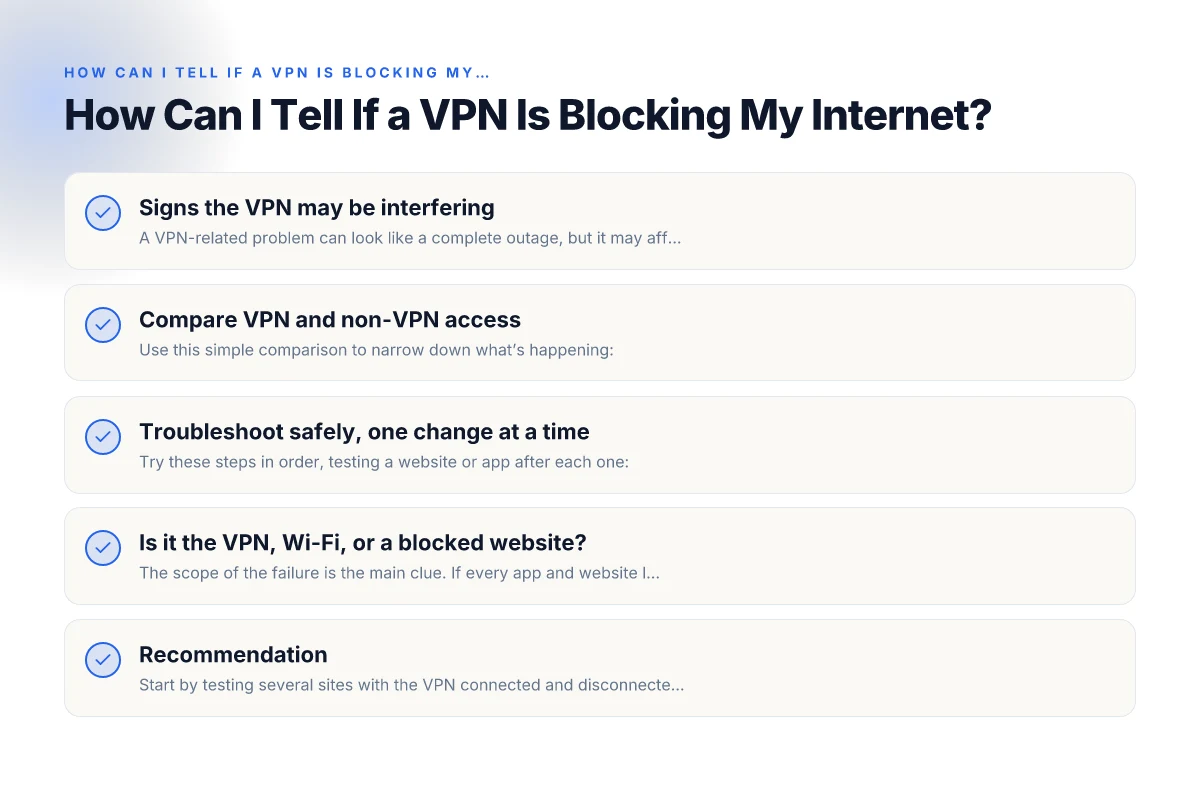
Compare VPN and non-VPN access
Use this simple comparison to narrow down what’s happening: NordVPN for Windows: Download, Install, and Use the App
| What you observe | What it may indicate | What to try |
|---|---|---|
| Internet fails with the VPN on but works with it off | VPN server, protocol, DNS, or kill-switch issue | Reconnect, choose another server, or review VPN settings |
| Internet fails whether the VPN is on or off | Wi-Fi, router, device, or provider problem | Check another device or network and restart the connection |
| Most sites work, but one site fails through the VPN | The site may block or restrict VPN traffic | Try a different VPN server or contact the site |
| The VPN says “connected,” but apps cannot load anything | The tunnel may be unstable, or a traffic-blocking setting may be active | Reconnect and check the kill switch and split-tunneling settings |
A VPN status indicator is useful, but it isn’t proof that every connection is working correctly. Check whether the VPN app reports an error, keeps reconnecting, or shows that a kill switch is active. You can also check your device’s network or VPN settings to see whether a VPN connection or profile is enabled. The exact menus vary by operating system.
Troubleshoot safely, one change at a time
| Step | Change or check | What to observe | If access improves |
|---|---|---|---|
| 1 | Record the current VPN and connection state | Which sites and apps fail | Keep the result for comparison |
| 2 | Reconnect the VPN | Whether affected sites load | Note whether reconnecting helped |
| 3 | Try another VPN server, if available | Whether the same site loads | Record the server that worked |
| 4 | Check the VPN app’s connection status | Connected or disconnected | Resolve any reported connection issue |
| 5 | Test the same site with VPN off, if safe | Whether access changes | Treat this as a comparison, not a permanent fix |
| 6 | Restore the original setting before the next test | Whether the baseline returns | Avoid combining changes |
Compiled November 2026; check the provider's site for current details.
Troubleshoot safely, one change at a time
Try these steps in order, testing a website or app after each one: Microsoft Edge Secure Network VPN Reviews: Is It Safe and Worth Using?
- Reconnect to the VPN. Disconnect, wait briefly, and connect again. If the app shows an error, note its wording.
- Switch VPN servers. A particular server may be unavailable or may not work well with a service. Choose another location offered by your provider.
- Check the kill switch. If the VPN cannot connect, a kill switch may block all traffic by design. Confirm its state in the VPN app. If you temporarily disable it to test, remember to turn it back on if you rely on it.
- Review split tunneling. This setting can send selected apps through the VPN while others use your regular connection. An unexpected rule may explain why only certain apps fail.
- Try another VPN protocol, if available. Some networks may interfere with one connection method but allow another. Use the options provided by your VPN service rather than changing unrelated network settings.
- Restart the app and device. This can clear a stuck VPN session or network configuration.
- Test another network. If the VPN works on a different Wi-Fi network or mobile connection, the original network may be interfering with VPN traffic.
Don’t reset all network settings or remove VPN profiles as a first step. Those actions can erase saved connections and make it harder to identify the cause. If you use a work or school VPN, check with the administrator before changing its configuration.
Is it the VPN, Wi-Fi, or a blocked website?
The scope of the failure is the main clue. If every app and website loses access only while the VPN is connected, investigate the VPN connection and its settings first. If the problem affects the device with or without the VPN, check whether other devices can use the same network. If they also fail, the router or internet service may be the issue.
If only one website or service is unavailable through the VPN, try another site and another VPN server. Some services restrict access from known VPN or proxy addresses. That can resemble a connection problem, but it is different from the VPN blocking all internet traffic. A VPN or proxy IP detection tool may identify whether an address is recognized as a VPN, but that alone does not diagnose your device’s connection.
A useful final check is to repeat the on/off comparison later or on another network. If the result changes, the issue may depend on the VPN server or network rather than a permanent device problem. Nord VPN in China: Does It Work and How to Prepare
Is the VPN, Wi-Fi, or website the likely cause?
| Observation | VPN may be involved | Wi-Fi or connection may be involved | Website may be involved |
|---|---|---|---|
| Site works with VPN off, but not on | Stronger possibility | Less likely | Less likely |
| Many sites fail with VPN on | Possible | Also possible | Less likely |
| Many sites fail with VPN on and off | Less likely | Possible | Possible |
| Only one website fails in both states | Less likely | Less likely | Possible |
| Other apps also lose access | Possible | Possible | Less likely |
| The same site works on another connection | Less likely | Possible | Possible |
| A VPN reconnect changes the result | Possible | Less likely | Less likely |
Compiled November 2026; check the provider's site for current details.
Recommendation
Start by testing several sites with the VPN connected and disconnected on a trusted network. If access returns when the VPN is off, reconnect, try a different server, and check the kill switch and split tunneling. If access fails either way, troubleshoot the Wi-Fi or device instead. If the problem continues, contact your VPN provider with the device, server, and error details, and keep protective settings enabled when you need them.